
用CSS美化你的HTML
CSS的简介:
1、CSS的定义:层叠样式表。属性和属性值用冒号分隔开,以分号结尾(这些符号都是英文的)。
2、CSS得引入方式:
- 行内引入:<div style="这里写样式">我是一个块级的标签</div>
- 嵌入式:将CSS样式表放到head中用<style>标签包裹起来
<head>
    ...
    <style type="text/css">
        ...此处写CSS样式
    </style>
</head>
- 导入式: 将一个独立的.css文件引入HTML文件中,导入式使用@import 引入外部CSS文件,<style>标记也是写在<head>标记中。 导入式会在整个网页装载完后再装载CSS文件。
<head>
    ...
    <style type="text/css">
        @import "My.css"; 此处注意.css文件的路径
    </style>
</head>
- 链接式引入:将一个独立的.css文件引入到HTML文件中,使用<link>标记写在<head>标记中。 链接式会以网页文件主体装载前装载CSS文件。
<head>
    ...
    <link href="My.css" rel="stylesheet" type="text/css">
</head>
3、样式的应用顺序:
- 行内样式优先级最高
- 针对相同的样式属性,不同的样式属性将以合并的方式呈现
- 相同样式并且相同属性,呈现方式在<head>中的顺序决定,后面会覆盖前面属性
-
!important
指定样式规则应用最优先
二、选择器
基本选择器:
1、通用元素选择器:
* 表示应用到所有的标签。
*{margin:0;padding:0;}
2、标签选择器
匹配所有使用 div 标签的元素(可以匹配所有标签)
div {color: yellow}
3、类选择器
匹配所有class属性中包含info的元素。
语法:.类名{样式}(类名不能以数字开头,类名要区分大小写。)
.yanse{color:yellow}

<div class="yanse"/>我的div</div>
4、id选择器
使用id属性来调用样式,在一个网页中id的值都是唯一的(是W3C规范而不是规则,所以不会报错)。
语法:#ID名{样式}(ID名不能以数字开头
#Mycolor {color: yellow}
<h3 id="Mycolor">H3</h3>
组合选择器:
1、多元素组合选择器
同时匹配两个或多个标签,用逗号隔开
p,a,div{color: yellow;}
<p>段落</p>
<a>link</a>
<div>kuai</div>
2、后代元素选择器
匹配所有div标签里嵌套的P标签,之间用空格分隔。
div p {color: yellow;}

<div>
    <p>pppppp</p>
    <div>
        <p>pppppp</p>
    </div>
</div>
3、子代元素选择器
匹配所有div标签里嵌套的子P标签,之间用>分隔。
div > p {color: yellow;}

<div>
    <p>div</p>
    <p>div</p>
</div>
4、毗邻元素选择器
匹配所有紧随div标签之后的同级标签P,之间用+分隔(只能匹配一个)。
div + p {color: yellow;}

<div>div</div>
<p>ppp</p>
属性选择器
1.[title] & P[title]
设置所有具有title属性的标签元素;
设置所有具有title属性的P标签元素。
[title]
    {
        color: yellow;
    }
    p[title]
    {
        color: yellow;
    }

<div title>hello</div>
<p title>hello</p>
2.[title=mk]
设置所有title属性等于“mk”的标签元素。
[title="mk"]
    {
        color: yellow;
    }

<p title="mk">mk</p>
2.[title=mk]
设置所有title属性具有多个空格分隔的值、其中一个值等于“mk”的标签元素。
[title~="mk"]
    {
        color: yellow;
    }

<p title="mk Jenny">Mk</p>
<p title="Jenny mk">Mk</p>
4.[title|=mk]
设置所有title属性具有多个连字号分隔(hyphen-separated)的值、其中一个值以"mk"开头的标签元素。
例:lang属性:"en"、"en-us"、"en-gb"等等
 [title|="mk"]
    {
        color: yellow;
    }

<p title="mk-Jenny">mk</p>
5.[title^=Nick]
设置属性值以指定值开头的每个标签元素。
[title^="mk"]
    {
        color: yellow;
    }

<p title="mkJenny">mk</p>
6.[title$=Nick]
设置属性值以指定值结尾的每个标签元素。
[title$="mk"]
    {
        color: yellow;
    }

<p title="Jenny mk">mk</p>
7.[title*=Nick]
设置属性值中包含指定值的每个元素
[title*="mk"]
    {
        color: yellow;
    }

<p title="SmkJenny">mk</p>
伪类选择器:
1. link、hover、active、visited
- a:link(未访问的链接状态),用于定义了常规的链接状态。
- a:hover(鼠标放在链接上的状态),用于产生视觉效果。
- a:active(在链接上按下鼠标时的状态)。
- a:visited(已访问过的链接状态),可以看出已经访问过的链接。
2. before、after
- P:before 在每个<p>元素的内容之前插入内容;
- P:after 在每个<p>元素的内容之后插入内容。
常用的属性:
1. 颜色属性:
color
- HEX(十六进制色:color: #FFFF00 --> 缩写:#FF0)
- RGB(红绿蓝,使用方式:color:rgb(255,255,0)或者color:rgb(100%,100%,0%))
- RGBA(红绿蓝透明度,A是透明度在0~1之间取值。使用方式:color:rgba(255,255,0,0.5))
- HSL(CSS3有效,H表示色调,S表示饱和度,L表示亮度,使用方式:color:hsl(360,100%,50%))
- HSLA(和HSL相似,A表示Alpha透明度,取值0~1之间。)
transparent
- 全透明,使用方式:color: transparent
opacity
- 元素的透明度,语法:opacity: 0.5;
- 属性值在0.0到1.0范围内,0表示透明,1表示不透明。
- filter滤镜属性(只适用于早期的IE浏览器,语法:filter:alpha(opacity:20);)。
2. 字体属性:
font-style: 用于规定斜体文本
- normal 文本正常显示
- italic 文本斜体显示
- oblique 文本倾斜显示
font-weight: 设置文本的粗细
- normal(默认)
- bold(加粗)
- bolder(相当于<strong>和<b>标签)
- lighter (常规)
- 100 ~ 900 整百(400=normal,700=bold)
font-size: 设置字体的大小
- 默认值:medium
- <absolute-size>可选参数值:xx-small、 x-small、 small、 medium、 large、 x-large、 xx-large
- <relative-size>相对于父标签中字体的尺寸进行调节。可选参数值:smaller、 larger
- <percentage>百分比指定文字大小。
- <length>用长度值指定文字大小,不允许负值。
font-family:字体名称
- 使用逗号隔开多种字体(优先级从前向后,如果系统中没有找到当前字体,则往后面寻找)
font:简写属性
- 语法:font:字体大小/行高 字体;(字体要在最后)
3. 文本属性:
white-space: 设置元素中空白的处理方式
- normal:默认处理方式。
- pre:保留空格,当文字超出边界时不换行
- nowrap:不保留空格,强制在同一行内显示所有文本,直到文本结束或者碰到br标签
- pre-wrap:保留空格,当文字碰到边界时换行
- pre-line:不保留空格,保留文字的换行,当文字碰到边界时换行
direction: 规定文本的方向
- ltr 默认,文本方向从左到右。
- rtl 文本方向从右到左。
text-align: 文本的水平对齐方式
- left
- center
- right
line-height: 文本行高
- normal 默认
vertical-align: 文本所在行高的垂直对齐方式
- baseline 默认
- sub 垂直对齐文本的下标,和<sub>标签一样的效果
- super 垂直对齐文本的上标,和<sup>标签一样的效果
- top 对象的顶端与所在容器的顶端对齐
- text-top 对象的顶端与所在行文字顶端对齐
- middle 元素对象基于基线垂直对齐
- bottom 对象的底端与所在行的文字底部对齐
- text-bottom 对象的底端与所在行文字的底端对齐
text-indent: 文本缩进
letter-spacing: 添加字母之间的空白
word-spacing: 添加每个单词之间的空白
text-transform: 属性控制文本的大小写
- capitalize 文本中的每个单词以大写字母开头。
- uppercase 定义仅有大写字母。
- lowercase 定义仅有小写字母。
text-overflow: 文本溢出样式
- clip 修剪文本。
- ellipsis 显示省略符号...来代表被修剪的文本。
- string 使用给定的字符串来代表被修剪的文本


<!DOCTYPE html>
<html lang="en">
<head>
    <meta charset="UTF-8">
    <title>Title</title>
    <!--<link href="cc2.css" rel="stylesheet" type="text/css">-->
    <style>
        div {
            width: 100px;
            height: 100px;
            white-space: nowrap;
            overflow: hidden;
            text-overflow: ellipsis;
        }
    </style>
</head>
<body>
    <div>mosson mosson mosson mosson mosson mosson mosson mosson mosson mosson mosson mosson mosson mosson mosson mosson mosson mosson mosson mosson mosson mosson mosson mosson</div>
</body>
</html>
text-decoration: 文本的装饰
- none 默认。
- underline 下划线。
- overline 上划线。
- line-through 中线。
text-shadow:文本阴影
- 第一个参数是左右位置
- 第二个参数是上下位置
- 第三个参数是虚化效果
- 第四个参数是颜色
- text-shadow: 5px 5px 5px #888;
word-wrap:自动换行
- word-wrap: break-word;
<!DOCTYPE html>
<html lang="en">
<head>
    <meta charset="UTF-8">
    <title>Title</title>
    <style>
        p {
            width: 150px;
            height: 160px;
            background-color: #FFA500;
            /*边框阴影*/
            box-shadow: 10px 10px 5px #888;
            /*自动换行*/
            word-wrap: break-word;
        }
        h1 {
            text-shadow: 5px 5px 5px #888;
        }
    </style>
</head>
<body>
    <p> 菊花残,满地伤,</p>
    <h1>mosson</h1>
</body>
</html>
li{list-style:none}
a{text-decoration:none}
4. 背景属性
background-color: 背景颜色
background-image 设置图像为背景
- url("http://images.cnblogs.com/cnblogs_com/suoning/845162/o_ns.png"); 图片地址
- background-image:linear-gradient(green,blue,yellow,red,black); 颜色渐变效果
background-position 设置背景图像的位置坐标
- background-position: center center; 图片置中,x轴center,y轴center
- 1px -195px 截取图片某部分,分别代表坐标x,y轴
background-repeat 设置背景图像不重复平铺
- no-repeat 设置图像不重复,常用
-
round 自动缩放直到适应并填充满整个容器
- space 以相同的间距平铺且填充满整个容器
background-attachment 背景图像是否固定或者随着页面的其余部分滚动
background 简写
- background: url("o_ns.png") no-repeat 0 -196px;
-
background: url("o_ns.png") no-repeat center bottom 15px;
-
background: url("o_ns.png") no-repeat left 30px bottom 15px;
5. 列表属性
list-style-type: 列表项标志的类型
- none 去除标志
- decimal-leading-zero; 02.
- square; 方框
- circle; 空心圆
- upper-alph; & disc; 实心圆
list-style-image:将图象设置为列表项标志
list-style-position:列表项标志的位置
- inside
- outside
list-style:缩写
页面布局:
1. 边框
border-style:边框样式
- solid 默认,实线
- double 双线
- dotted 点状线条
- dashed 虚线
border-color:边框颜色
border-width:边框宽度
border-radius:圆角
- 1个参数:四个角都应用
- 2个参数:第一个参数应用于 左上、右下;第二个参数应用于 左下、右上
- 3个参数:第一个参数应用于 左上;第二个参数应用于 左下、右上;第三个参数应用于右下
- 4个参数:左上、右上、右下、左下(顺时针
border: 简写
- border: 2px yellow solid;
box-shadow:边框阴影
- 第一个参数是左右位置
- 第二个参数是上下位置
- 第三个参数是虚化效果
- 第四个参数是颜色
- box-shadow: 10px 10px 5px #888;
<!DOCTYPE html>
<html lang="en">
<head>
    <meta charset="UTF-8">
    <title>Title</title>
    <style>
        div {
            border:2px solid;
            border-radius:25px;
            width: 140px;
        }
    </style>
</head>
<body>
    <div>看我的拐角</div>
</body>
</html>

<!DOCTYPE html>
<html lang="en">
<head>
    <meta charset="UTF-8">
    <title>Title</title>
    <style>
        .radius1 {
            display: inline-block;
            width: 100px;
            height: 100px;
            background-color: yellow;
            border-radius: 20px;
        }
        .radius2 {
            display: inline-block;
            width: 100px;
            height: 100px;
            background-color: red;
            border-radius: 20px 35px;
        }
        .radius3 {
            display: inline-block;
            width: 100px;
            height: 100px;
            background-color: blue;
            border-radius: 20px 35px 50px;
        }
        .radius4 {
            display: inline-block;
            width: 100px;
            height: 100px;
            background-color: green;
            border-radius: 20px 35px 50px 60px;
        }
        .radius5{
            display: inline-block;
            width: 100px;
            height: 100px;
            background-color: purple;
            border-radius: 50px 100px 50px 50px;
        }
        .radius6{
            display: inline-block;
            width: 100px;
            height: 100px;
            background-color: purple;
            border-radius: 50px 100px;
        }
    </style>
</head>
<body>
    <div>
        <span class="radius1"></span>
        <span class="radius2"></span>
        <span class="radius3"></span>
        <span class="radius4"></span>
        <span class="radius5"></span>
        <span class="radius6"></span>
    </div>
</body>
</html>

将正方形 切割成特殊的形状:

<!DOCTYPE html>
<html lang="en">
<head>
    <meta charset="UTF-8">
    <title>Title</title>
    <style>
        .triangle-one {
            display: inline-block;
            border-top: 50px red solid;
            border-right: 50px green solid;
            border-bottom: 50px yellow solid;
            border-left: 50px blue solid;
        }
        .triangle-two {
            display: inline-block;
            border-top: 0 red solid;
            border-right: 50px green solid;
            border-bottom: 50px yellow solid;
            border-left: 50px blue solid;
        }
        .triangle-stree {
            display: inline-block;
            border-top: 50px red solid;
            border-right: 0 green solid;
            border-bottom: 50px yellow solid;
            border-left: 50px blue solid;
        }
        .triangle-four {
            display: inline-block;
            border-top: 50px red solid;
            border-right: 0 green solid;
            border-bottom: 0 yellow solid;
            border-left: 50px blue solid;
        }

        .triangle-five {
            display: inline-block;
            border: 50px transparent solid;
            border-top: 50px red solid;
        }
        .triangle-six {
            display: inline-block;
            border: 50px transparent solid;
            border-bottom: 50px yellow solid;
        }
        .triangle-seven {
            display: inline-block;
            border: 50px transparent solid;
            border-top: 60px red solid;
            border-right: 0;
        }
        .triangle-eight {
            display: inline-block;
            border: 50px transparent solid;
            border-left: 30px yellow solid;
            border-bottom: 0;
        }
    </style>
</head>
<body>
    <div class="triangle-one"></div>
    <div class="triangle-two"></div>
    <div class="triangle-stree"></div>
    <div class="triangle-four"></div>
    <div class="triangle-five"></div>
    <div class="triangle-six"></div>
    <div class="triangle-seven"></div>
    <div class="triangle-eight"></div>
</body>
</html>

<!DOCTYPE html>
<html lang="en">
<head>
    <meta charset="UTF-8">
    <title>Title</title>
    <style>
        *{
            margin: 0;
            padding: 0;
        }
        .back {
            /*整个画布的背景宽度、高度、颜色*/
            width: 1000px;
            height: 1000px;
            margin: 0 auto;
            background-color: #ddd;
            position: relative;
        }
        .back-in {
            /*放标题的位置*/
            position: absolute;
            width: 1020px;
            height: 45px;
            left: -20px;
            top: 50px;
            background-color: #2F4F4F;
        }
        .back-img {
            /*灰色角标*/
            border: 20px solid transparent;
            border-top: 10px solid dimgrey;
            border-right: 0;
            display: inline-block;
            position: absolute;
            top: 95px;
            left: -20px;
        }
        .back-font {
            line-height: 45px;
            margin-left: 30px;
            color: white;
        }
    </style>
</head>
<body>
    <div class="back">
        <div class="back-in"><span class="back-font">雨一直下,气氛还算融洽,...</span></div>
        <div class="back-img"></div>
    </div>
</body>
</html>
2、盒子模型:
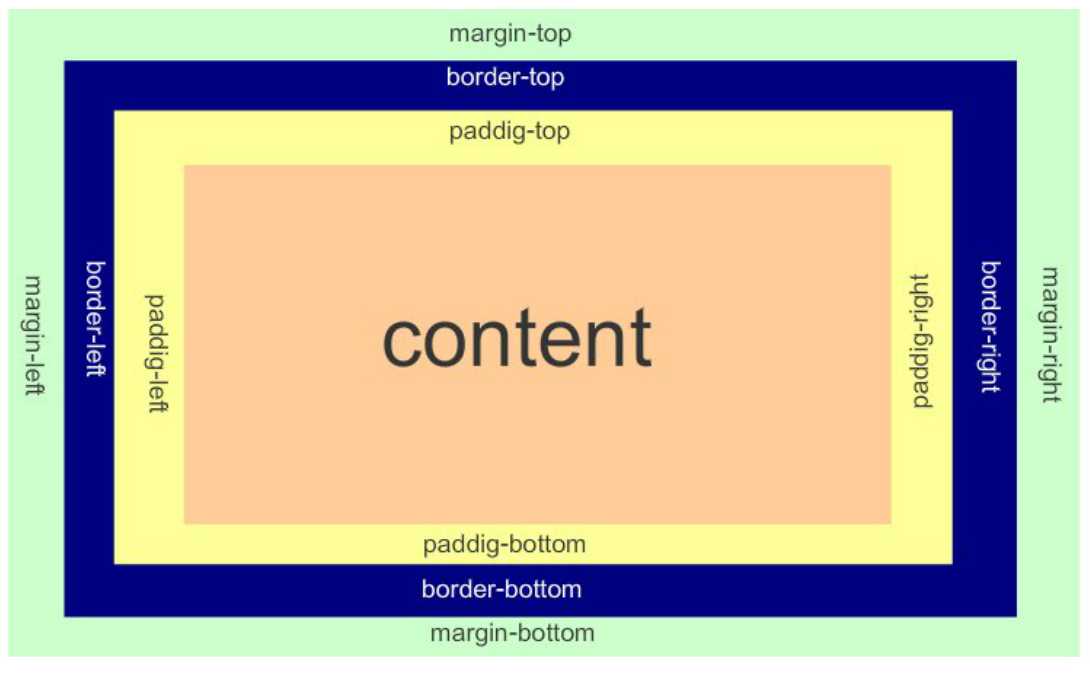
padding:用于控制内容与边框之间的距离;
margin: 用于控制元素与元素之间的距离;
| padding、margin | 表示上右下左都应用 |
| padding-top、margin-top | 上 |
| padding-right、margin-right | 右 |
| padding-bottom、margin-bottom | 下 |
| padding-left、margin-left | 左 |
一个参数,应用于四边。
两个参数,第一个用于上、下,第二个用于左、右。
三个参数,第一个用于上,第二个用于左、右,第三个用于下。
当我们写html的时候;在我们写body与浏览器之间还存在一块的空白区域
body{
margin:0;
}
3. display
- none 不显示。
- block 显示为块级元素。
- inline 显示为内联元素。
- inline-block 行内块元素(会保持块元素的高宽)。
- list-item 显示为列表元素。
4. visibility
- visible 元素可见
- hidden 元素不可见
- collapse 当在表格元素中使用时,此值可删除一行或一列,不会影响表格的布局。
5. float 浮动
让一行显示两个或多个块级标签,会脱离文档流;如果浮动起来的标签的父级标签没有内容;那么父标签将消失;
- none
- left 左浮动
- right 右浮动
clear 清除浮动:
- none : 默认值。允许两边都可以有浮动对象
- left : 不允许左边有浮动对象
- right : 不允许右边有浮动对象
- both : 不允许两边有浮动对象
6. clip 剪裁图像
rect 剪裁定位元素:
- auto 默认值,无剪切
- 上-右-下-左(顺时针)的顺序提供四个偏移值
- 区域外的部分是透明的
- 必须指定 position:absolute;
例:clip:rect(0px,60px,200px,0px);
7. overflow 设置当对象的内容超过其指定高度及宽度时如何显示内容
- visible 默认值,内容不会被修剪,会呈现在元素框之外。
- hidden 内容会被修剪,并且其余内容是不可见的。
- scroll 内容会被修剪,但是浏览器会显示滚动条以便查看其余的内容。
- auto 如果内容被修剪,则浏览器会显示滚动条以便查看其余的内容。
8. position 规定元素的定位类型
|
static |
默认值,没有定位,遵从正常的文档流 |
| relative |
相对定位元素,相对于其正常位置进行定位,遵从正常的文档流 |
| absolute |
绝对定位元素,脱离正常文档流 |
| fixed | 绝对定位元素,固定在浏览器某处 |
- 通过以下四种属性进行定位:
- left
- top
- right
- bottom
- z-index
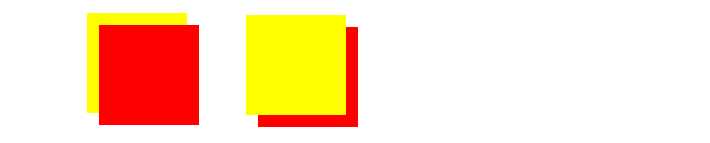
9. z-index 元素层叠顺序
- z-index 仅在定位元素上有效(例:position:absolute;)
- 可以指定负数属性值(例:-1;)
<!DOCTYPE html>
<html lang="en">
<head>
    <meta charset="UTF-8">
    <title>Title</title>
    <style>
        .z-index1 {
            width: 100px;
            height: 100px;
            background-color: yellow;
            position: absolute;
            z-index: -1;
        }
        .z-index2 {
            width: 100px;
            height: 100px;
            background-color: red;
            position: absolute;
            top: 20px;
            left: 20px;
            z-index: 5;
        }
    </style>
</head>
<body>
    <div class="z-index1"></div>
    <div class="z-index2"></div>
</body>
</html
10. outline 边框轮廓
- outline-width 轮廓宽度
- outline-color 轮廓颜色
- outline-style 轮廓样式
11. zoom 缩放比例 :
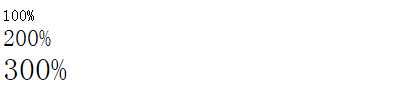
<!DOCTYPE html>
<html lang="en">
<head>
    <meta charset="UTF-8">
    <title>Title</title>
    <style>
        .zoom1 {
            zoom: 100%;
        }
        .zoom2 {
            zoom: 150%;
        }
        .zoom3 {
            zoom: 200%;
        }
    </style>
</head>
<body>
    <div class="zoom1"> 100%</div>
    <div class="zoom2">200%</div>
    <div class="zoom3">300%</div>
</body>
</html>
12. cursor 鼠标的类型形状
鼠标放在以下单词上,There will be a miracle:
url: 自定义光标
<!DOCTYPE html>
<html lang="en">
<head>
    <meta charset="UTF-8">
    <title>Title</title>
    <!--<link href="cc2.css" rel="stylesheet" type="text/css">-->
    <style>
        body {
            cursor: url("mouse.png"), auto;
            /*图片地址:http://images.cnblogs.com/cnblogs_com/suoning/845162/o_mouse.png*/
        }
    </style>
</head>
<body>
    <div><img src="http://images.cnblogs.com/cnblogs_com/suoning/845162/o_ns.png" height="100%" width="100%"></div>
</body>
</html>
Auto: 默认
  Default: 默认
  e-resize
  ne-resize
  nw-resize
  n-resize
  se-resize
  sw-resize
  s-resize
  w-resize
  Crosshair
  Pointer
  Move
  text
  wait
  help
13. transform、transition 动画效果
transform 转换,变形
- origin 定义旋转基点(left top center right bottom 坐标值) transform-origin: 50px 50px; transform-origin: left;。
- rotate 旋转 transform:rotate(50deg) 旋转角度可以为负数,需要先定义origin。
- skew 扭曲 transform:skew(50deg,50deg) 分别为相对x轴倾斜,相对y轴倾斜。
- scale 缩放 transform:scale(2,3) 横向放大2倍,纵向放大3倍;transform:scale(2) 横竖都放大2倍。
- translate 移动 transform:translate(50px, 50px) 分别为相对x轴移动,相对y轴移动
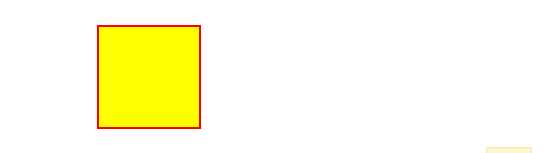
<!DOCTYPE html>
<html>
<head>
    <meta http-equiv="Content-Type" content="text/html; charset=utf-8" />
    <title>nick</title>
    <meta charset="utf-8" />
    <style type="text/css">
        div {
            border: 1px solid black;
            height: 30px;
            width: 30px;
            background-color: yellow;

            /*transform-origin: 50px 50px;*/
            transform-origin: left;
            transform: rotate(50deg);
            /*transform: skew(50deg,50deg);*/
            /*transform: translate(50px,50px);*/
            /*transform: scale(2);*/
        }
    </style>
</head>
<body>
    <div></div>
</body>
</html>
Transition 平滑过渡
- transition-property: 变换的属性(none(没有属性改变)、all(所有属性改变)、具体属性)
- transition-duration: 变换持续时间
- transition-timing-function: 变换的速率(ease:(逐渐变慢)、linear:(匀速)、ease-in:(加速)、ease-out:(减速)、ease-in-out:(加速然后减速)、cubic-bezier:(自定义时间曲线))
- transition-delay: 变换延迟时间
- transition: 缩写
#property 指定属性对应类型

1、color: 通过红、绿、蓝和透明度组件变换(每个数值单独处理),如:background-color,border-color,color,outline-color等CSS属性;

2、length:真实的数字,如:word-spacing,width,vertical- align,top,right,bottom,left,padding,outline-width,margin,min-width,min- height,max-width,max-height,line-height,height,border-width,border- spacing,background-position等属性;

3、percentage:真实的数字,如:word-spacing,width,vertical- align,top,right,bottom,left,min-width,min- height,max-width,max-height,line-height,height,background-position等属性;

4、integer 离散步骤(整个数字),在真实的数字空间,以及使用floor()转换为整数时发生,如:outline-offset,z-index等属性;

5、number真实的(浮点型)数值,如:zoom,opacity,font-weight等属性;

6、transform list。

7、rectangle:通过x、 y、 width和height(转为数值)变换,如:crop;

8、visibility:离散步骤,在0到1数字范围之内,0表示“隐藏”,1表示完全“显示”,如:visibility;

9、shadow:作用于color、x、y、和blur(模糊)属性,如:text-shadow;

10、gradient:通过每次停止时的位置和颜色进行变化。它们必须有相同的类型(放射状的或是线性的)和相同的停止数值以便执行动画,如:background-image;

11、paint server (SVG):只支持下面的情况:从gradient到gradient以及color到color,然后工作与上面类似;

12、space-separated list of above:如果列表有相同的项目数值,则列表每一项按照上面的规则进行变化,否则无变化;

13、a shorthand property:如果缩写的所有部分都可以实现动画,则会像所有单个属性变化一样变化。
#支持执行transition效果的属性

Property Name    Type
background-color    as color
background-position    as repeatable list of simple list of length, percentage, or calc
border-bottom-color    as color
border-bottom-width    as length
border-left-color    as color
border-left-width    as length
border-right-color    as color
border-right-width    as length
border-spacing    as simple list of length
border-top-color    as color
border-top-width    as length
bottom    as length, percentage, or calc
clip    as rectangle
color    as color
font-size    as length
font-weight    as font weight
height    as length, percentage, or calc
left    as length, percentage, or calc
letter-spacing    as length
line-height    as either number or length
margin-bottom    as length
margin-left    as length
margin-right    as length
margin-top    as length
max-height    as length, percentage, or calc
max-width    as length, percentage, or calc
min-height    as length, percentage, or calc
min-width    as length, percentage, or calc
opacity    as number
outline-color    as color
outline-width    as length
padding-bottom    as length
padding-left    as length
padding-right    as length
padding-top    as length
right    as length, percentage, or calc
text-indent    as length, percentage, or calc
text-shadow    as shadow list
top    as length, percentage, or calc
vertical-align    as length
visibility    as visibility
width    as length, percentage, or calc
word-spacing    as length
z-index    as integer